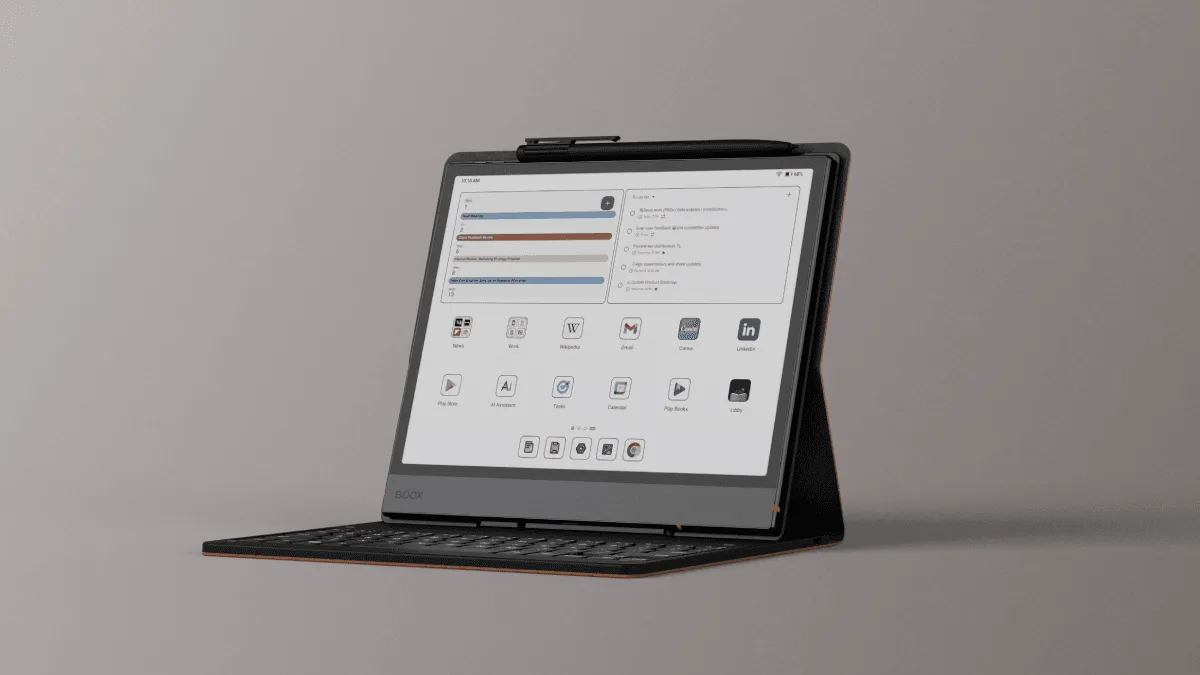
BOOX devices run Android, which means you have access to thousands of apps. But not all apps work well on e-ink — our BOOX Android app guide covers the full ecosystem. Here are the tools that do.
Built-in BOOX Tools
E-Ink Center
The most important tool on your BOOX. Controls how apps render on e-ink.
| Setting | Best For | Effect |
|---|---|---|
| Regal mode | Reading, static text | Cleanest display, occasional refresh |
| Speed mode | Scrolling, web browsing | Smooth but more ghosting |
| A2 mode | Animations, video | Maximum speed, reduced quality |
| Normal mode | General use | Balanced quality and speed |
Pro tip: Set different modes for different apps in E-Ink Center.
Navigation Ball
A floating shortcut button. Customize it for quick access to:
- Back, Home, Recent Apps
- Screenshot
- E-Ink Center
- App switching
- Front light toggle
- Screen refresh
BOOX Dropbox
Built-in Dropbox integration for wireless file transfer. Just link your account in Settings.
NeoReader
BOOX’s native reading app — already covered in our NeoReader Guide.
Essential Android Apps for BOOX
Reading Apps
| App | Purpose | E-Ink Rating | Optimization Tip |
|---|---|---|---|
| Kindle App | Read Amazon books | ⭐⭐⭐ | Set to Regal mode |
| Kobo App | Read Kobo books | ⭐⭐⭐ | Set to Regal mode |
| Libby | Library books | ⭐⭐⭐ | Set to Regal mode |
| FBReader | Universal reader | ⭐⭐⭐⭐ | Good on e-ink |
| Read-later articles | ⭐⭐⭐ | Set to Speed mode | |
| Perfect Viewer | Comics/PDF | ⭐⭐⭐⭐ | Great for manga |
Note-Taking Apps
| App | Best For | Rating | Notes |
|---|---|---|---|
| OneNote | Cross-device sync | ⭐⭐⭐ | Good |
| Evernote | Research, clipping | ⭐⭐⭐ | Good |
| Notion | Structured notes | ⭐⭐ | OK, needs Speed mode |
| Nebo | Handwriting recognition | ⭐⭐⭐⭐⭐ | Excellent |
| Google Keep | Quick notes | ⭐⭐⭐⭐ | Great |
| Squid | Handwritten notes | ⭐⭐⭐⭐⭐ | Excellent |
Dictionary & Language Apps
| App | Purpose | Notes |
|---|---|---|
| GoldenDict | Offline dictionaries | Supports MDX/StarDict/Babylon |
| MDict | Chinese bilingual dictionaries | Large dictionary library |
| DeepL | Translation | Needs WiFi |
| Google Translate | Quick translation | Needs WiFi |
Productivity Apps
| App | Use Case |
|---|---|
| Google Drive | Cloud storage, file sync |
| Dropbox | Wireless book transfer |
| Microsoft Office | Document viewing (Word, Excel) |
| Pomodoro Timer | Focus sessions |
| Bitwarden | Password manager |
Optimizing Apps for E-Ink
Per-App Optimization
For every app you install, configure it in E-Ink Center:
- Open E-Ink Center
- Find your app in the list
- Set:
- Refresh mode: Regal for reading, Speed for browsing
- DPI: Match your BOOX model (usually 227-300)
- Full refresh interval: Every 5-10 pages for reading
- Disable animations: YES (crucial for e-ink)
Disable Animations System-Wide
# Enable Developer Options (tap Build Number 7 times)
# Then:
Settings → Developer Options → Window Animation Scale → 0.5x or OFF
Settings → Developer Options → Transition Animation Scale → OFF
Settings → Developer Options → Animator Duration Scale → OFF
Reduce Blue Light
- Enable E-Ink Center’s night mode
- Use warm light (built-in, adjustable)
- Install Twilight app for additional blue light filtering
File Transfer Tools
| Method | Speed | WiFi Needed |
|---|---|---|
| USB cable | ★★★★★ Fastest | ❌ No |
| Dropbox (built-in) | ★★★★ Fast | ✅ Yes |
| Google Drive | ★★★★ Fast | ✅ Yes |
| Send to BOOX email | ★★★ Slow | ✅ Yes |
| FTP server app | ★★★★ Fast | ✅ Yes (local network) |
Batch Optimization Tools
ImageGrabber
Extract images from PDFs and ebooks for note-taking.
File Manager+
Better file management than BOOX’s default.
SDMaid
Clean up cache and junk files from Android apps.
Pro Tips
- Use Regal mode for everything reading-related — cleanest text
- Disable auto-sync in most apps — saves battery
- Install a minimalist launcher — Niagara Launcher works great on e-ink
- Use Split-Screen — native to BOOX, great for research
- Keep only essential apps — too many apps slow down the device
Related
- BOOX Android App Guide — how to find and install the best e-ink Android apps
- BOOX Split-Screen & Multitasking — dual-window reading, note-taking, and research workflows
- NeoReader PDF Tips for BOOX — deep dive into BOOX’s native reading app