Calibre looks intimidating on day one. Stick with it for a week and you’ll wonder how you ever managed an ebook library without it. Here’s the walkthrough I wish I’d had.
Getting set up
Grab the installer from calibre-ebook.com — there are builds for Windows, macOS, and Linux, and Kovid Goyal (the developer) keeps them ruthlessly up to date. The first launch hits you with a welcome wizard. Its most important decision: where a library lives. By default Calibre drops it in your user folder, but I recommend pointing it at a dedicated folder you’ll actually remember — somewhere you can back up easily. You can change this later, but doing it now saves headaches.
macOS
brew install --cask calibreWindows
winget install calibre.calibreLinux
sudo apt install calibreFirst things to configure
Before you dump your entire library in, spend five minutes in Preferences. Three settings will save you grief later.
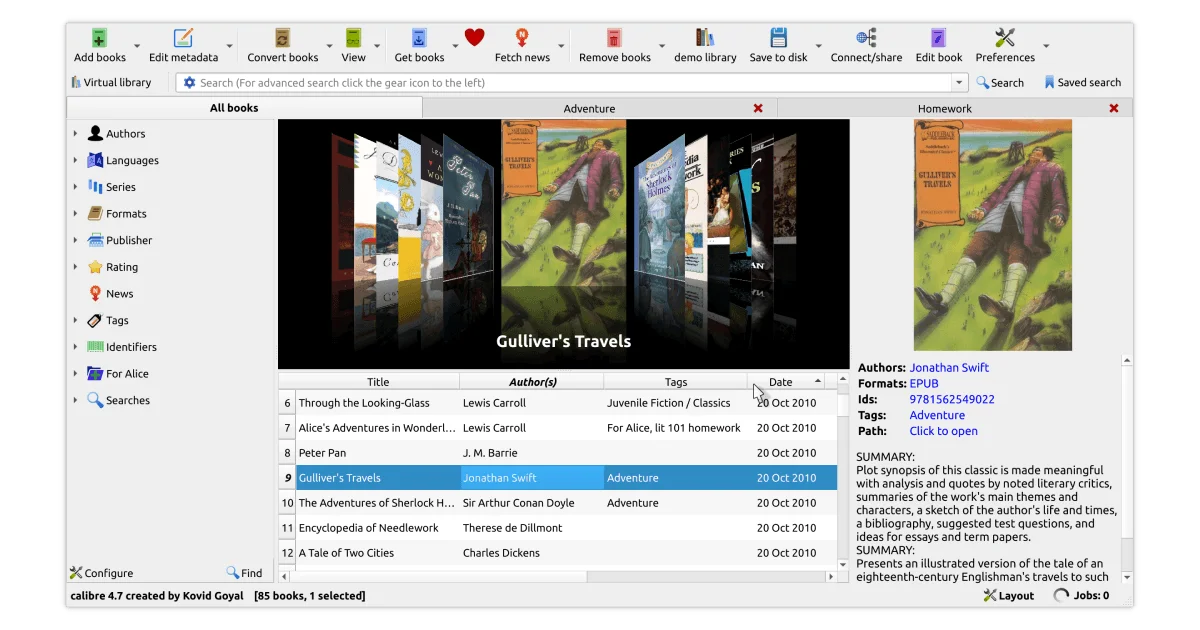
Look & Feel controls how Calibre displays a library. Under the Main Interface tab, you can rearrange columns — I like having Author, Series, Tags, and Formats visible. Under Cover Browser, set the thumbnail size to something sensible; the default is fine for most screens. If you have a high-DPI monitor, check the font size option so you’re not squinting at 8pt metadata.
Adding Books has one checkbox I can’t recommend enough: “Auto-merge added books if they already exist” with the title/author matching option. If you re-download a better version of a book you already own, Calibre merges the formats into one entry rather than creating a duplicate. It also has options to automatically convert to your preferred format on import and to read metadata from the filename using a regex pattern — powerful if your files follow a consistent naming convention like Author - Title.epub.
Saving Books to Disk defines how Calibre exports files back to your filesystem. The default template {author_sort}/{title}/{title} - {authors} creates a clean folder structure. I tweak mine to omit the author folder — I just want a flat list when I’m copying to a device manually.
Adding books
Drag any ebook file into the Calibre window and it lands in a library. No import dialog, no ceremony — Calibre copies it into its managed folder structure and leaves the original untouched. The Add books button in the toolbar does the same thing with a file picker, useful when you want to browse for one specific file.
For bulk imports, you can drag an entire folder of ebooks into Calibre and it’ll recursively find every supported format inside. This is the fastest way to bootstrap a library — point it at whatever chaotic downloads folder you’ve been hoarding and let it sort everything in seconds. Calibre ignores duplicates automatically if the file hash matches, so you can safely re-import the same folder later without creating clutter.
My favourite trick: set up an auto-add folder under Preferences → Adding books → Automatic adding. Drop files into that folder and Calibre silently imports them in the background. It’s essentially a watched folder — perfect if you source books from multiple places and just want a dumping ground. I keep mine pointed at ~/auto-add-to-calibre and set browser downloads to land there by default.
Metadata: the part that separates a library from a pile
Calibre pulls metadata from ISBN databases and Amazon, but it’s not magic. Select a book, hit Ctrl+D (or Edit metadata individually), and click Download metadata. You’ll get a list of potential matches. Pick the right one, choose a cover you actually like, and confirm. The real work is cleanup. Files named things like The_Hobbit_final_v2.epub come in with nonsense titles that you’ll want to fix manually. A few seconds per book now saves you scrolling past junk titles forever.
Converting formats
Select a book, click Convert books, and pick an output format. The conversion dialog has more settings than anyone needs, but understanding your format options pays off.
For Kindle: EPUB → AZW3 is the best default. It supports custom fonts, better typesetting, and hyphenation that MOBI never handled well. MOBI is ancient — Amazon stopped supporting it on Send to Kindle in 2022, and it doesn’t handle custom fonts or advanced formatting. Skip it. If you have a newer Kindle (Paperwhite 11th gen or later, Scribe, Colorsoft), install the KFX Output plugin and convert to KFX instead. KFX adds enhanced typesetting — better kerning, ligatures, and hyphenation that make text look closer to a traditionally printed page. The difference is subtle but real; side by side with AZW3, KFX text looks more polished. The trade-off: KFX files are harder to strip DRM from later, so if you value portability across ecosystems, stick with AZW3.
For Kobo: EPUB works natively, but the stock EPUB renderer on Kobos uses an older Adobe RMSDK engine. Convert to KEPUB (via the Kobo Touch Extended plugin or by renaming .epub to .kepub.epub) and you get faster page turns, better reading stats (hours left in chapter, not just book), and pop-up footnotes that work. The difference in page-turn speed alone is worth the extra click.
Quality settings matter. In the conversion dialog, the Look & Feel tab has a “Minimum line height” percentage — set it to 120% if text feels cramped. Under Heuristic Processing, enabling “Ensure scene breaks are formatted consistently” cleans up messy section breaks. Under Table of Contents, make sure “Do not add detected chapters” is unchecked; Calibre auto-detects chapter headings and builds a navigable TOC. Leave everything else at defaults unless you know what you’re doing.
Polish and plugins
Polish books (hit P with a book selected) embeds metadata into the file, updates the cover, and optionally smartens punctuation — turning straight quotes into curly ones. It’s a one-click cleanup I run on every book before it touches a device.
Three plugins worth installing immediately: KFX Output for sending modern formats to newer Kindles; Count Pages to estimate page counts from word count (essential if you’re picky about reading stats); and DeDRM, which handles DRM removal when you need to read a purchased book on a different device. I won’t detail that one — but know it exists.
Getting books onto a device
Plug an e-reader into USB. Calibre spots it and adds a Send to device button to the toolbar. Select books, click it, and Calibre handles format conversion on the fly. When the job’s done, eject the device properly — pulling the cable early is the fastest route to a corrupted database. Don’t ask how I know.