E-reader touchscreens use infrared or capacitive sensors to detect your fingers, and over time — or after a drop — the calibration between where you touch and where the device registers the touch can drift. Here’s how to recalibrate across every major brand.
Kindle: hidden diagnostic calibration
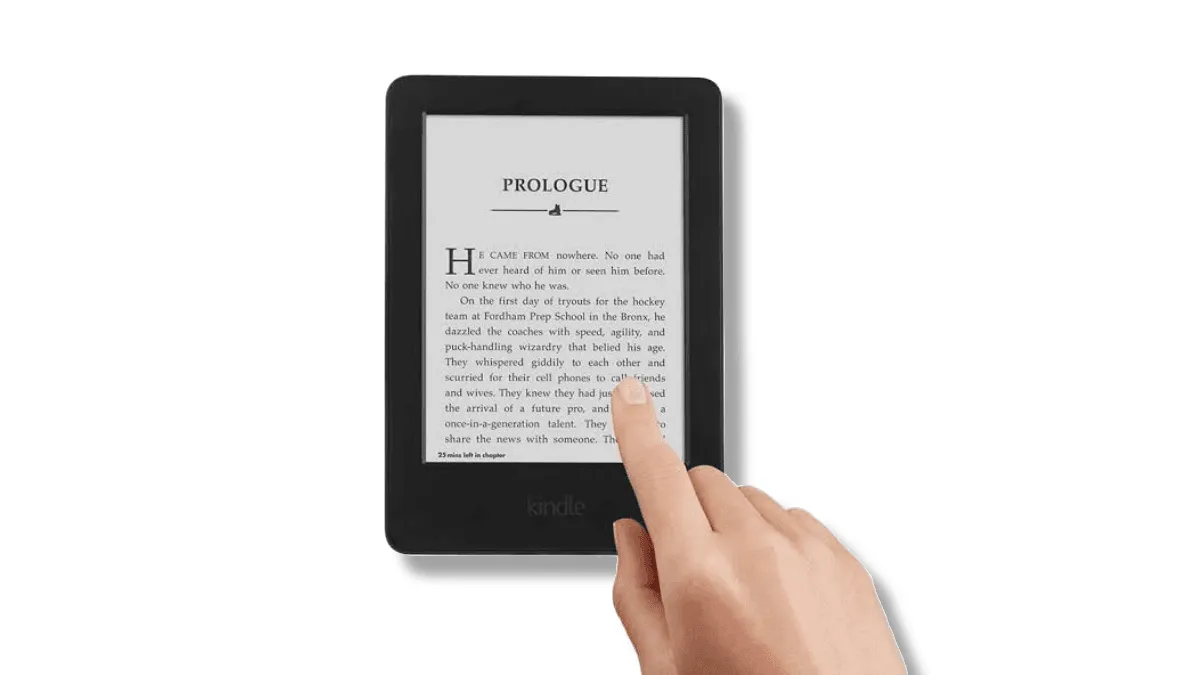
Kindles don’t expose touchscreen calibration in the normal settings menu, but they do have a diagnostic mode. From the home screen, tap the search bar and type ;dm (semicolon-d-m). This enters the diagnostics menu. Navigate to Touch Sensor Test and follow the on-screen prompts to draw lines and tap targets. If the calibration is off, the device will often auto-correct during this test.
If the diagnostic menu doesn’t launch, a Kindle may be running a firmware version where this has been removed. In that case, a factory reset (Settings → Device Options → Reset) often resolves touch accuracy issues by clearing corrupted calibration data — see our Kindle troubleshooting guide for what to do before and after a reset. Back up books first — a reset wipes everything.
Kobo: manual and automatic calibration
Kobo devices that use infrared touch (most models released before 2024) are sensitive to dust and debris around the screen bezel. The IR emitters and sensors sit in a narrow channel along the screen edge — if dust accumulates there, the touch layer misreads position. Clean the bezel edge gently with a dry microfiber cloth, especially in the corners.
For capacitive-touch Kobos (Clara Colour, Libra Colour), there’s a hidden calibration option. With the device off, hold the power button and the top-right page-turn button simultaneously until the screen flashes. This boots into a maintenance mode where you can run a touchscreen calibration. Follow the on-screen crosshair targets exactly — hold each press for half a second. If touch issues persist after calibration, dust or debris around the bezel edge may be interfering — see our e-reader maintenance guide for proper cleaning technique.
Boox: Android calibration tools
On Boox devices, the touchscreen can be calibrated from Settings → System → Touch Calibration. You’ll be prompted to tap several crosshairs; do this with the stylus if you have one, as Boox’s Wacom layer and capacitive touch layer calibrate separately. If you’re using a screen protector, remove it before calibrating — some protectors interfere with the capacitive sensor grid, especially cheaper PET film protectors.
For stylus-only accuracy issues, Boox has a separate Stylus Calibration tool under Settings → Stylus → Calibrate. This aligns the EMR (electromagnetic resonance) digitizer with the display, fixing issues where the pen tip registers a few millimeters from where you actually wrote. If you’re also seeing ghosting alongside touch issues on a Boox, screen refresh settings can compound the problem — see our Boox ghosting fix guide.
PocketBook: the simple approach
PocketBook devices use a built-in calibration tool at Settings → Maintenance → Touchscreen Calibration. Follow the crosshair prompts. If the issue persists, a full power cycle (hold power for 20 seconds) often resolves ghost-touch issues on PocketBook devices, especially after firmware updates.
If none of these steps work, your touchscreen digitizer may be physically damaged — look for hairline cracks at the screen edge, or test with a drawing app to see if dead zones form a pattern. In that case, contact the manufacturer for repair options.
Related
- E-reader troubleshooting guide — comprehensive diagnostics for all major e-reader brands
- E-reader maintenance guide — cleaning, storage, and preventative care to extend device life
- E-reader frozen screen fix — what to do when the screen won’t respond at all
- Boox screen ghosting fix — address ghosting and display artifacts on Boox devices