
 Inksky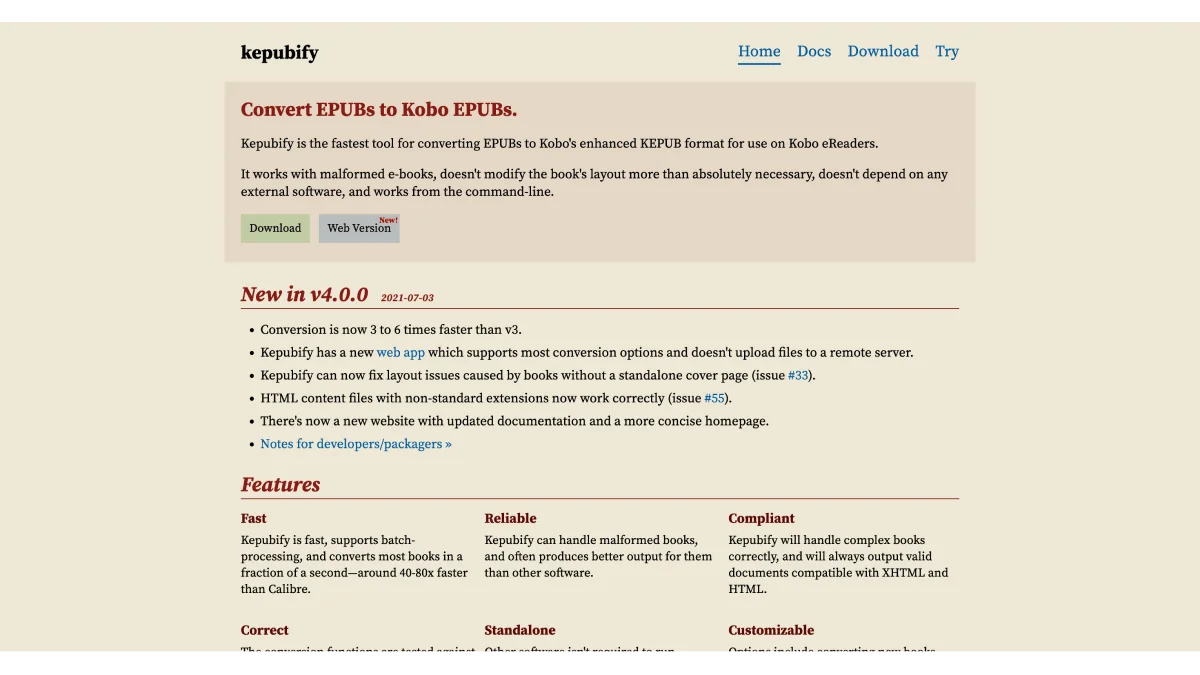
Kobo’s native EPUB reader is good, but KEPUB is much better. Kepubify converts your EPUBs to KEPUB in one click.
What is KEPUB?
KEPUB is Kobo’s optimized ebook format. Unlike standard EPUB, KEPUB offers:
| Feature | EPUB | KEPUB |
|---|---|---|
| Page turn speed | Standard | Faster (pre-rendered) |
| Reading statistics | ❌ Not tracked | ✅ Fully tracked |
| Chapter progress | ❌ No | ✅ Yes — shows time left in chapter |
| Font customization | Good | Better kerning and ligatures |
| Footnotes | Standard | Pop-up footnotes |
| File size | Normal | Slightly larger |
For Kobo users, KEPUB is the superior format.
What is Kepubify?
Kepubify is a free, open-source tool that converts standard EPUB files to KEPUB format. It’s:
- Fast — converts a book in under a second
- Lightweight — single executable file, no installation
- Cross-platform — Windows, macOS, Linux
- Batch processing — convert your entire library at once
- Safe — doesn’t modify your original EPUBs
Download
| Platform | Download |
|---|---|
| Windows | GitHub Releases — download kepubify-windows-64bit.exe |
| macOS | GitHub Releases — download kepubify-macos-64bit |
| Linux | GitHub Releases — download kepubify-linux-64bit |
Quick Start
Windows
- Download
kepubify-windows-64bit.exe - Rename to
kepubify.exe - Drag and drop an EPUB onto the executable
- A
.kepub.epubfile appears in the same folder
macOS / Linux (Command Line)
# Make executable
chmod +x kepubify-macos-64bit

# Convert a single file
./kepubify-macos-64bit book.epub

# Convert all EPUBs in a folder
./kepubify-macos-64bit *.epub
Batch Conversion
Convert your entire library at once:
# Convert all EPUBs in current directory
./kepubify *.epub

# Convert recursively (all subdirectories)
find . -name "*.epub" -exec ./kepubify {} \;

# Convert and save to a different folder
./kepubify -o /path/to/output/ *.epub
Using Kepubify with Calibre
For smooth integration, install the Kepubify Calibre plugin:
- In Calibre, go to Preferences → Plugins → Get new plugins
- Search for Kepubify
- Install and restart Calibre
- Now in Calibre, right-click any EPUB → Convert → Convert to KEPUB
How to Transfer KEPUB to Kobo
Via USB
- Connect Kobo to computer
- Copy the
.kepub.epubfiles to your Kobo - Eject — Kobo imports them automatically
Via Calibre
Via Dropbox (Kobo + Dropbox models)
- Upload
.kepub.epubto Dropbox - On Kobo, go to Dropbox
- Download the file
Verifying KEPUB Conversion
After converting, open the book on your Kobo and check:
- ✅ Chapter progress — shows “x min left” (KEPUB only)
- ✅ Reading stats — time tracked (KEPUB only)
- ✅ Page turns — noticeably faster
- ✅ Font rendering — smoother kerning
Kepubify vs Other KEPUB Tools
| Feature | Kepubify | Calibre (KoboTouch) | Kobo Desktop |
|---|---|---|---|
| Speed | ★★★★★ Instant | ★★★ Moderate | ★★ Slow |
| Batch convert | ✅ Yes | ✅ Yes | ❌ No |
| Preserves formatting | ★★★★★ | ★★★ | ★★★★ |
| No installation | ✅ Portable exe | ❌ Needs Calibre | ❌ Needs install |
| Open source | ✅ Yes | ✅ Yes | ❌ No |
Troubleshooting
| Problem | Solution |
|---|---|
| ”Permission denied” on macOS | Run chmod +x kepubify-macos-64bit |
| Kobo doesn’t recognize KEPUB | Make sure the file ends in .kepub.epub |
| Images broken in KEPUB | Re-convert from a clean EPUB source |
| Kepubify not found | Add it to your PATH, or use full path |
| Calibre plugin not showing | Install from Calibre’s plugin manager |
Download Kepubify (GitHub releases)
Free. Command-line tool for Windows, macOS, and Linux.