
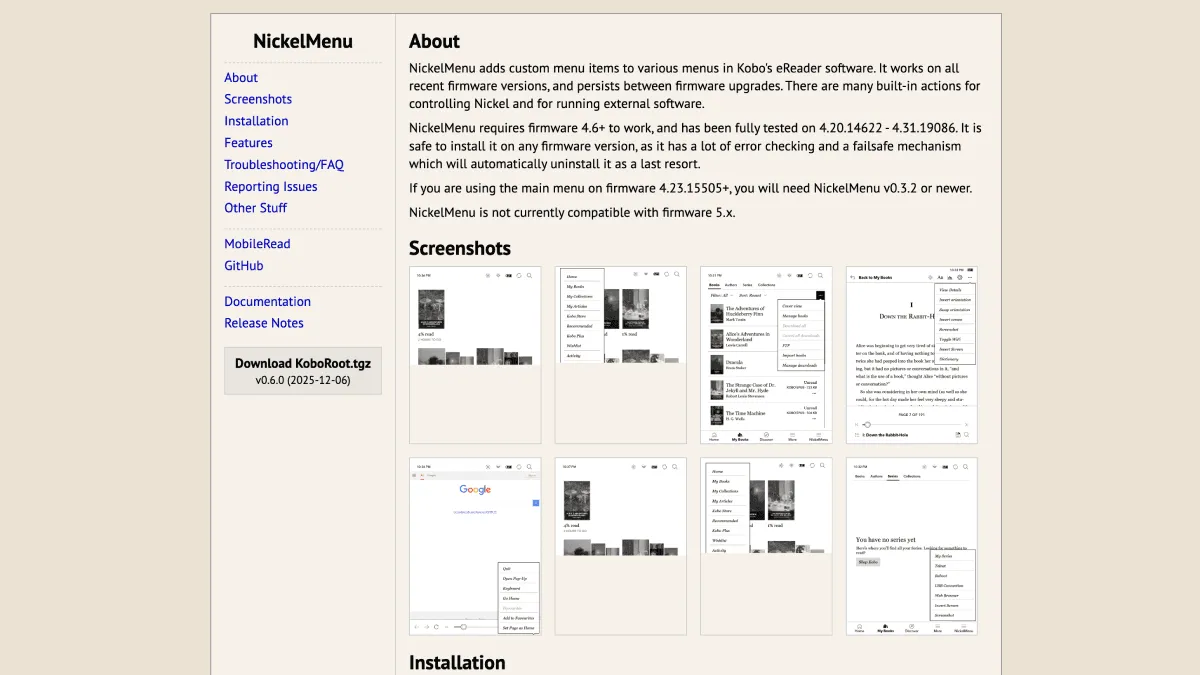
Kobo’s stock software — called Nickel — is clean and uncluttered, but it leaves a lot of capabilities locked away. the practical takeaway: you don’t need a risky jailbreak to enable them. Kobo’s developer mode is an official, built-in feature, and NickelMenu rides on top of it to give you a customizable launcher. Here’s how to set both up.
Enabling developer mode
This is the easiest step. Open the search bar from a Kobo’s home screen and type:
devmodeonTap Search. Nothing visible happens, but developer mode is now enabled. To confirm, go to Settings → Device Information. You’ll see a new “Developer options” entry at the bottom. To disable it, search for devmodeoff. It’s that simple and completely reversible — no file modifications, no risk.
With dev mode on, you gain access to a handful of hidden settings: toggle screenshots (activated by the power button), enable or disable the sketch pad in the built-in browser, and view detailed Wi-Fi diagnostics. But the real power comes from what dev mode enables next.
Installing NickelMenu
NickelMenu is a lightweight add-on that adds a new menu item to a Kobo’s home screen and reading interface. Installation is straightforward:
- Download the latest NickelMenu release from pgaskin’s GitHub. Pick the file named
KoboRoot.tgz. - Connect a Kobo to your computer via USB.
- Copy
KoboRoot.tgzinto the.kobofolder on a Kobo (the folder is hidden — enable hidden files in your file manager or just type the path). - Eject and unplug. A Kobo will reboot and install NickelMenu automatically.
- After reboot, you’ll see a “NickelMenu” entry in the bottom-right corner of your home screen.
To uninstall, delete .adds/nm/koboroot.tgz and reboot. Everything NickelMenu does is reversible.
Useful menu entries
NickelMenu works through a configuration file at .adds/nm/config.txt. Each line defines a menu entry. Here are a few practical ones to get started:
menu_item :main    :Toggle Screenshots    :nickel_setting :enable :screenshots
menu_item :main    :Launch Plato          :cmd_spawn      :/mnt/onboard/.adds/plato/plato.sh
menu_item :main    :Toggle Wi-Fi          :nickel_setting :toggle :force_wifi
menu_item :main    :Import Books          :nickel_misc    :rescan_books_full
menu_item :main    :Invert Screen         :nickel_setting :toggle :invert
menu_item :reader  :Dark Mode Toggle      :nickel_setting :toggle :dark_mode
menu_item :reader  :Take Screenshot       :nickel_setting :screenshot
menu_item :browser :Open Browser          :nickel_browser :modal
The :main prefix puts the item in the home screen menu, :reader in the reading menu, and :browser in a new menu item you can access from anywhere. Create the file, save it, and toggle NickelMenu off and on from its menu to reload the config. For a deeper dive into adding Plato as an alternative reader alongside NickelMenu, see our NickelMenu and Plato guide.
Installing KOReader
KOReader is an alternative reading application that handles PDFs dramatically better than Nickel and supports custom CSS, advanced layout controls, and OPDS catalogs. You install it as a NickelMenu launch target:
- Download KOReader from their GitHub releases. Get the Kobo package.
- Extract it to
.adds/koreader/on a Kobo’s internal storage. - Add this line to your NickelMenu config:
menu_item :main :KOReader :cmd_spawn :/mnt/onboard/.adds/koreader/koreader.shKOReader launches as a separate application. It doesn’t replace Nickel — you can switch between them by exiting KOReader, which drops you back to the home screen. Both can coexist indefinitely.
For PDF readers, KOReader’s reflow and crop tools alone make this worth the 10-minute setup. For EPUB readers, the customization ceiling is much higher than stock — custom font weight, contrast, and margin controls that Kobo’s default reader doesn’t expose. Once you’re comfortable with the basics, our KOReader and Plato advanced setup guide covers gestures, manga optimization, and reading progress sync.
What’s safe and what isn’t
Developer mode and NickelMenu are safe. They use official, documented hooks in Kobo’s software. You can disable dev mode and uninstall NickelMenu at any time with no trace. KOReader is a separate application — it doesn’t touch the system partition.
What can cause problems: manually editing Kobo’s SQLite database (the file that stores reading stats and book metadata) without a backup, or installing modified system files through third-party patches not designed for your firmware version. Those are genuine jailbreak territory and can soft-brick a device — meaning you’d need a factory reset to recover. Stick to dev mode, NickelMenu, and applications that live entirely inside .adds/, and you’ll stay in safe waters. Ready to go further? Our KFMon + NickelMenu advanced launcher guide covers custom launch entries, auto-start on boot, and shell scripts.
Related
- NickelMenu and Plato for Kobo: beyond defaults — custom menus and an alternative reading interface
- KFMon + NickelMenu: advanced launcher configuration — custom launch entries, auto-start on boot, and shell scripts
- KOReader and Plato on Kobo: advanced setup guide — gestures, manga optimization, and reading progress sync