
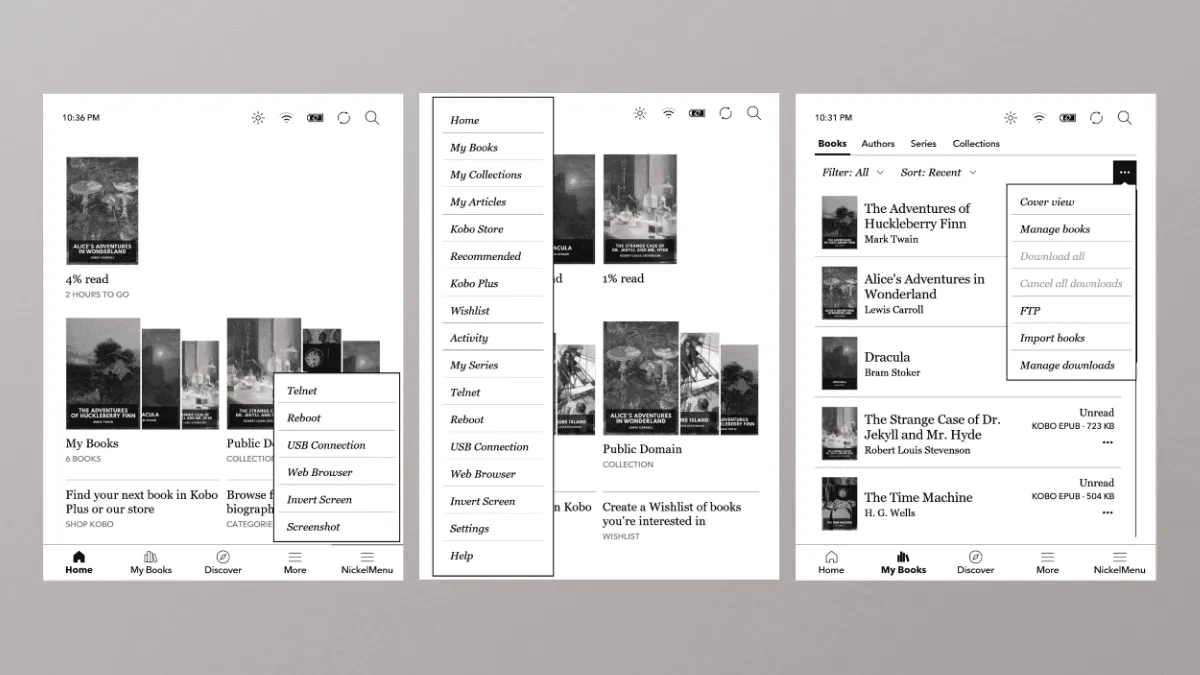
The stock Kobo software is fine. It reads books. But after a few months with my Libra, I started wanting more — a faster way to toggle WiFi, the ability to take screenshots, and a PDF reader that didn’t feel like wading through molasses. That’s where NickelMenu and Plato come in, and honestly, they’ve transformed how I use the device.
What NickelMenu actually is
NickelMenu is a lightweight open-source utility by Patrick Gaskin that adds custom menu entries to Kobo’s native interface — which Kobo internally calls “Nickel.” It does not replace or modify the stock firmware. It sits on top, injecting menu items into the existing UI. No jailbreak, no patching system files, no risk of bricking your device. If something goes wrong, you delete a config file and everything reverts to normal.
Why would you want it? The stock Kobo interface buries useful functions behind multiple taps. Toggling WiFi takes four screen interactions: Home → Settings → Wi-Fi → toggle. Disabling sleep cover detection requires navigating to a buried setting every time you take the device out of a case that does not have a sleep magnet. NickelMenu collapses these into one-tap actions on the home screen or inside a book. It is the kind of quality-of-life improvement that feels trivial on paper but genuinely changes how the device feels to use day to day.
Step-by-step installation
Installation is shockingly easy. Head to the NickelMenu releases page on GitHub and download the one-click installer package — it is a file named KoboRoot.tgz. Connect your Kobo to a computer via USB and enable file transfer on the device. You need to see the hidden .kobo folder on the Kobo’s internal storage. On macOS, press Cmd + Shift + . in Finder to toggle hidden files. On Windows, go to File Explorer → View → Show Hidden Items. Copy KoboRoot.tgz into .kobo, eject the device, and unplug.
The Kobo detects the file on boot and installs NickelMenu automatically. No progress bar, no confirmation message. After the device restarts, you will find a new “NickelMenu” entry at the bottom of the main menu — the one you get by tapping the three-dot icon on the home screen. That is it. The whole process takes under a minute.
Writing your menu config
The magic happens in a plain text config file. After installation, connect the Kobo to a computer again and navigate to .adds/nm/. If the nm folder does not exist, create it. Inside, create a file named config — no file extension, just config. Each line defines one menu entry using this syntax:
menu_item :location :label :action :argumentThe location determines where the entry appears: main is the home screen menu, reader is the in-book menu, library is the library view, and browser is the web browser menu. The action field specifies what happens — common ones include nickel_wifi, nickel_batt, nickel_misc, nickel_screenshot, nickel_open, and nickel_extras.
A few entries I actually use every day:
menu_item :main    :Toggle WiFi      :nickel_wifi     :toggle
menu_item :reader  :Dark Mode        :nickel_misc     :night_mode
menu_item :reader  :Screenshot       :nickel_screenshot
menu_item :main    :Battery %        :nickel_batt
menu_item :main    :USB Connect      :nickel_misc     :force_usb_connection
menu_item :reader  :Invert Screen    :nickel_misc     :invert
menu_item :main    :Sleep            :nickel_misc     :sleep
The USB Connect shortcut is a sleeper hit. Normally, when you plug in a Kobo it asks whether to connect or just charge. If you miss the prompt — and I miss it constantly — you have to unplug and replug. The menu entry forces the connection dialog to reappear. Small thing, huge practical value.
The Screenshot action saves a PNG to the Kobo’s root directory, which you can pull off via USB. I use this constantly for capturing book passages to share in group chats. The Invert Screen entry is separate from dark mode — it literally inverts all colors, which some people prefer for reading in total darkness.
You can also chain multiple actions with chain_success and chain_failure. This example toggles WiFi, waits two seconds for the connection, then forces a sync:
menu_item :main :Sync Now :cmd_spawn :quiet:/usr/bin/nickel_sync.shThe possibilities go deeper than most people realize, but start simple. Five or six entries that solve real friction points in your daily use are worth more than a sprawling menu you never touch.
Troubleshooting NickelMenu
If your config file does nothing, the most common culprit is the file name. It must be named exactly config with no .txt extension. On Windows, File Explorer hides extensions by default, so you might think you created config when you actually created config.txt. Right-click the file, check Properties, and make sure the name is exactly config.
Another common issue: incorrect location names. The locations are case-sensitive — main works, Main does not. If a menu item shows up but does nothing when tapped, the action name or argument is probably wrong. The NickelMenu GitHub repository has a full reference of every supported action, and it is worth keeping open while you experiment.
If NickelMenu itself stops appearing, reinstall it by copying KoboRoot.tgz to .kobo again. You will not lose your config file — it lives in .adds/nm/config and survives reinstalls.
Plato: a completely different reading engine
Plato is an independent document reader written in Rust by Alberto Baskerville. It is not a Kobo mod — it is a full application that runs alongside Nickel, with its own rendering engine, its own UI toolkit, and its own approach to displaying documents. It boots in about three seconds instead of Kobo’s fifteen, and PDF page turns are near-instant. If you read academic papers or scanned documents, the stock reader is painful: page turns lag, zooming is clunky, and reflow is basically nonexistent. Plato handles all of that smoothly.
What makes Plato different is its rendering philosophy. Nickel uses a web-based renderer (Qt WebEngine) for EPUBs, which is flexible but heavy. Plato uses its own lightweight typesetting engine that prioritizes speed and correctness over flashy typography. The result is faster page turns, better memory usage, and surprisingly good PDF handling for a device with limited RAM. Plato also supports continuous scrolling through PDFs — something the stock reader does not offer at all — and includes a crop tool that automatically trims margins from scanned documents, making small-text PDFs readable on a 7-inch screen.
Plato’s EPUB support is solid but not as feature-rich as the stock reader. You lose things like reading stats, annotations synced to Kobo’s cloud, and OverDrive integration. For novels, I stick with the stock reader. For anything in PDF format, Plato is dramatically better.
Installing Plato and launching it from NickelMenu
Download the latest Plato release from GitHub. Extract the archive and copy the plato folder into .adds/plato/ on your Kobo’s internal storage. Then add this line to your NickelMenu config:
menu_item :main :Plato :nickel_extras :platoNow you can launch Plato directly from your home screen menu. When you close Plato, it drops you back into Nickel — no rebooting, no juggling. I keep my academic reading in Plato and my pleasure reading in the stock reader. Best of both worlds.
One heads-up: Plato does not support every Kobo model. Check the GitHub compatibility list before installing — the Libra 2, Libra Colour, Clara 2E, Clara BW, and Sage are all supported, but older or less common models may not be. If your device is supported, it is a no-brainer upgrade for anyone who handles PDFs.
KOReader vs Plato: which one should you pick?
If you are deep enough into Kobo customization to be reading this, you have probably also heard of KOReader, another standalone document viewer. Both KOReader and Plato can be launched from NickelMenu, and both outperform the stock reader for PDFs. The choice between them comes down to what you value.
KOReader is the Swiss Army knife. It has a massive feature set: calibre wireless connection, OPDS catalog browsing, Wallabag integration, custom gestures, a built-in file manager, and fine-grained control over every aspect of rendering. It supports more formats — DJVU, CBZ, and XPS in addition to EPUB and PDF. The trade-off is complexity. KOReader’s settings menu is deep, the UI has a learning curve, and on lower-RAM Kobo models it can feel sluggish.
Plato is the scalpel. It does fewer things but does them faster and with less friction. Its PDF engine is the best on Kobo hardware, period. EPUB rendering is cleaner out of the box. The UI is simpler and stays out of your way. If you mostly read EPUBs and PDFs and want the fastest possible experience, Plato is the better choice. If you need niche format support, wireless calibre sync, or deep customization, go with KOReader.
You do not have to choose. Install both. NickelMenu can launch either one with separate menu entries. I keep both on my Libra: Plato for PDF-heavy research sessions, KOReader for the rare DJVU file or when I want to browse my calibre library wirelessly.
When things go wrong
If Plato fails to launch, the most likely cause is an incorrect folder path. The plato binary must be at .adds/plato/plato — not .adds/plato/plato-0.9.42/plato or any nested folder structure. Unzip the release and copy the contents so the executable sits directly in .adds/plato/.
If Plato launches but the touch screen does not respond, you may have an incompatible firmware version. Plato targets specific Kobo firmware releases, and a major firmware update can sometimes break touch input. Check the Plato GitHub issues page — there is usually a fix or a workaround within a few days of a new Kobo firmware release.
If you ever want to remove either tool, simply delete the .adds/nm or .adds/plato folders. There is nothing else to clean up. No system files were modified, no registry entries were created. That is the beauty of tools that respect the host system.